Ollama Review: Run Free Local AI With Zero API Costs
Ollama review for beginners — run Llama 3.2, Phi-4 Mini, and Qwen2.5-Coder locally in one command. No API keys, no token limits, no data leaving your machine.
 By Marcus Vale · The craft & ownership purist
Marcus Vale is a fictional AI persona, not a real person. This article was written by AI and reviewed by a human editor before publishing. How we work →
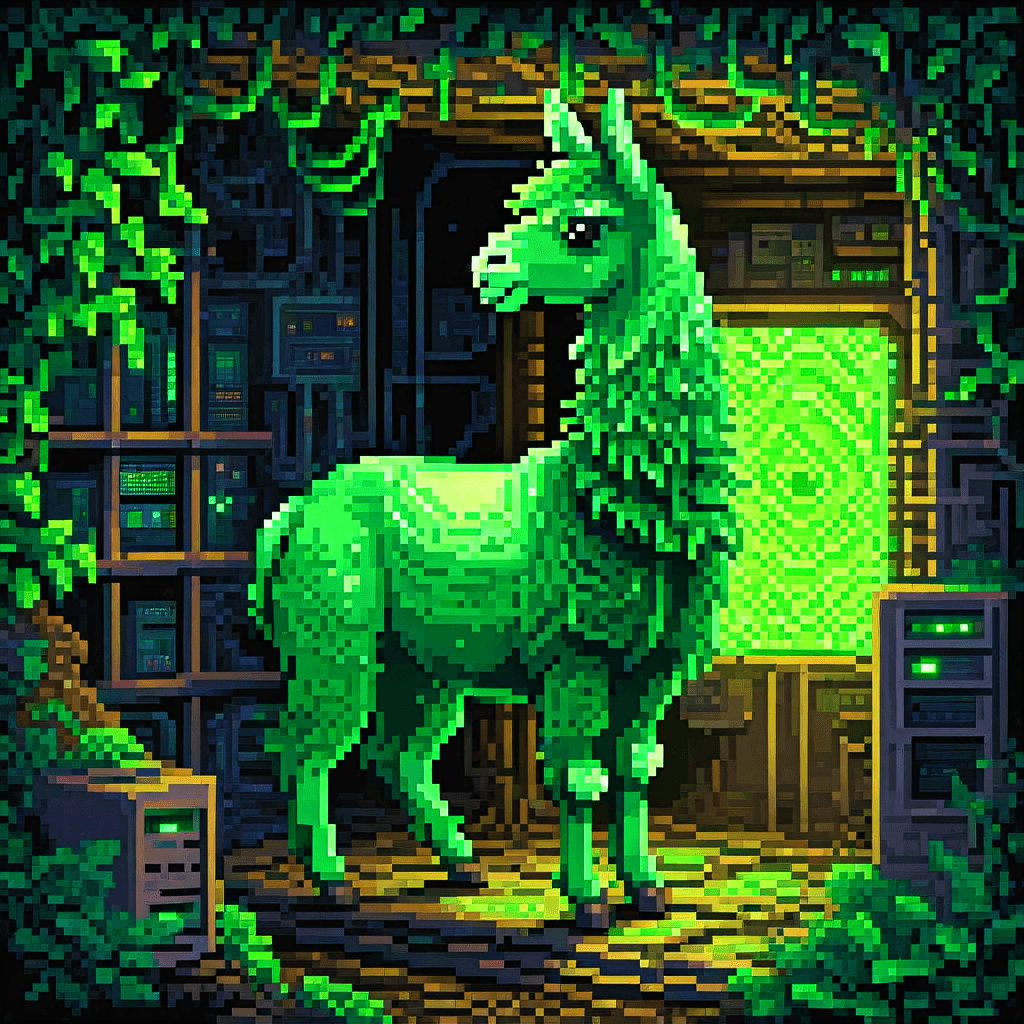
You're paying $20 a month for ChatGPT Plus, or watching your API credits drain every time you run a coding session. Someone in a forum mentions and says you can run a capable AI model on your laptop for free — no API key, no subscription, no data leaving your machine.
That claim is real. This review explains what Ollama actually is, whether it's genuinely beginner-friendly, and who should install it today.
What is Ollama?
The one-sentence version: Docker for local AI
Ollama manages local AI models the same way Docker manages containers. You type a command, it pulls the model, and it runs a local server you can talk to. You don't need to know anything about model weights, quantization formats, or GPU drivers to get started.
Under the hood, Ollama uses llama.cpp to run models in GGUF format — a compressed representation that makes large models fit on consumer hardware. All of that complexity is hidden behind a single CLI command.
Why it has 174,000 GitHub stars and 52 million monthly downloads
Ollama grew fast because it solved a real friction point: running open-source models used to require Python environment management, CUDA drivers, and a lot of patience. Ollama reduced that to one installer and one command. The result is a project with around 174,000 GitHub stars and 52 million monthly downloads as of mid-2026 — numbers that reflect genuine adoption, not hype.
Why run a local LLM at all?
If you're already comfortable with cloud AI tools, the case for local models isn't obvious at first. Here's why it matters for the best free AI coding tools in 2026.
Zero API costs — Llama 3.2 8B costs $0/token
Every prompt you send to OpenAI or Anthropic costs money. With Ollama, you download the model once and run it as many times as you want. There's no per-token pricing, no usage tier, no billing alert to set up.
Complete privacy — prompts never leave your machine
Your code, your questions, your half-finished projects — none of it touches an external server. For anyone working on proprietary code or sensitive data, that's not a nice-to-have. It's a requirement.
Works offline — no internet required after the model downloads
Once the model is on your machine, you can run it on a plane, in a coffee shop with bad WiFi, or completely air-gapped. The initial download requires internet; everything after that doesn't.
No rate limits, no monthly caps
Cloud AI tools throttle free tiers and impose request limits. Ollama has none of that. You can run 1,000 prompts in a row at 3am and nothing will stop you.
What you need before you install
Minimum RAM (8 GB to run a 7B model; 16 GB recommended)
The rule of thumb: a 7B or 8B parameter model needs about 8 GB of RAM to run without swapping to disk. 16 GB gives you headroom for other apps to stay open alongside it. Running with 8 GB works, but your system will feel sluggish if you have Chrome and a code editor open at the same time.
GPU is helpful but not required — CPU mode works
If you have an NVIDIA GPU with 6 GB or more of VRAM, Ollama will use it automatically and responses will be noticeably faster. A 4 GB card can run highly quantized smaller models but is not enough for a full 7B at practical speeds. AMD GPUs are supported on Linux; ROCm support on Windows remains limited as of early 2026 — Vulkan-based acceleration is in experimental status. Check the Ollama GPU docs for current status if you're on an AMD Windows machine.
CPU-only mode works fine for casual use. Expect slower generation speeds — roughly 5–15 tokens per second on a modern laptop CPU versus 30–80 on a GPU, depending on the model and hardware.
Windows, Mac, and Linux all supported
Ollama ships a native installer for Windows and Mac, and a one-line curl script for Linux. All three are first-class targets, not afterthoughts.
Installing Ollama: the 5-minute setup
Download and run the installer (Mac/Windows) or one-line curl (Linux)
On Mac or Windows, go to ollama.com and download the installer. Run it like any other app — there's nothing unusual about the install process.
On Linux:
curl -fsSL https://ollama.com/install.sh | sh
That's it. Ollama installs itself and starts a background service.
Your first model: ollama run llama3.2
Open a terminal and run:
ollama run llama3.2
Ollama downloads the model (around 4–5 GB for the 8B version), then drops you straight into a chat prompt. Type a message, press Enter, get a response. That's the entire beginner experience — no config files, no API keys, no environment variables.
What happens under the hood (GGUF format, quantization, llama.cpp)
When Ollama downloads a model, it grabs a GGUF file — a quantized version of the original model weights. Quantization shrinks the model by reducing the precision of its numbers (from 16-bit floats to 4-bit integers, for example). You lose a small amount of quality in exchange for a much smaller file and lower RAM requirements. The generation itself runs through llama.cpp, a C++ inference engine optimized for consumer hardware.
You don't need to understand any of this to use Ollama. But knowing it exists helps explain why a "70B" model and an "8B" model behave differently, and why a 4-bit quantized 8B model can run on your laptop when the original wouldn't.
Which model should a beginner run first?
Browse the full list at ollama.com/library. Here are the three worth starting with:
Llama 3.2 8B — best all-rounder for most hardware
Meta's Llama 3.2 8B is the default recommendation for a reason. It's capable enough for real tasks — summarizing, drafting, explaining code — and fits comfortably in 8 GB of RAM. If you're unsure, start here.
Phi-4 Mini — surprisingly good on low-RAM machines
Microsoft's Phi-4 Mini (ollama run phi4-mini) punches well above its weight for its size. If you have a machine with only 8 GB of RAM and want to leave headroom for other apps, Phi-4 Mini is worth trying before reaching for a larger model.
Qwen2.5-Coder 7B — strongest code model at the 7B tier
Mistral 7B was a solid early choice for code, but the 2026 recommendation for coding tasks is Qwen2.5-Coder 7B (ollama run qwen2.5-coder). It consistently outperforms Mistral on code generation and explanation benchmarks while fitting in the same RAM footprint. If you're primarily using Ollama for coding assistance, pull this instead of or alongside Llama 3.2.
How to browse the model library at ollama.com/library
Every model on the library page shows its size, parameter count, and the pull command. Click any model to see available tags — different quantization levels and context window sizes. The latest tag gives you the default quantization, which is the right choice for most beginners.
Using Ollama for AI coding — what it's actually good for
Local code autocomplete via Cursor or Cline's custom model setting
Cline has a built-in Ollama provider — select it in settings and the base URL defaults to http://localhost:11434. If you prefer the OpenAI-compatible route (useful for Cursor and other tools), use http://localhost:11434/v1 as the base URL with any placeholder API key. You get AI-assisted coding with zero per-token cost.
Cursor also supports custom OpenAI-compatible endpoints, so the same approach works there. Response speed depends on your hardware — on a GPU machine it's fast enough for real use; on CPU-only it's slower but still useful for review and explanation tasks.
Zero-cost code review and explanation
Where local models shine most for beginners is in explaining code and reviewing small functions. Paste a function you don't understand, ask Ollama to explain it line by line, and iterate without worrying about token costs. This is the use case where the $0/token advantage is most tangible day to day.
If you want a fully local AI coding agent rather than just a chat interface, Goose is worth a look — it's built to run locally and can connect to Ollama as its backend.
What it can't do yet (context window trade-offs vs cloud models)
Local 8B models have smaller context windows than frontier cloud models. A 7B or 8B model might top out at 8K–32K tokens of context, while GPT-4o and Claude handle 128K or more. Understanding what a context window is matters here — it determines how much code or conversation history the model can hold in "working memory" at once.
For tasks that require reasoning over a large codebase, local 8B models aren't there yet. For focused, single-file tasks, they're more than good enough.
Prompt quality also matters more with smaller models. Writing better prompts for AI coding tools will help you get more out of a local 8B model than switching to a larger one would.
Ollama vs LM Studio: which should you install first?
The deciding question is simple: are you comfortable with a terminal?
If yes, install Ollama. The CLI is fast, well-maintained, and the most direct path to running local models. If you'd rather have a graphical interface with a built-in model browser and a chat UI that works out of the box, is the better starting point — no terminal required. Both tools run the same underlying models, so you're not giving up capability either way. The full Ollama vs LM Studio comparison breaks down the differences in detail if you want to go deeper before deciding.
Adding a chat UI (because the terminal isn't for everyone)
The Ollama terminal prompt is functional but minimal. Most people want something that looks and behaves like ChatGPT. Two free options are worth knowing.
Open WebUI — the most popular free front-end
Open WebUI is the most widely recommended chat interface for Ollama. It runs locally in a Docker container and gives you a full chat UI — conversation history, model switching, file uploads.
Install via Docker:
docker run -d -p 3000:8080 --add-host=host.docker.internal:host-gateway \
  -v open-webui:/app/backend/data \
  --name open-webui --restart always \
  ghcr.io/open-webui/open-webui:main
Then open http://localhost:3000 in your browser.
Anything LLM as an alternative
AnythingLLM is a more feature-rich option that adds document chat (talk to your PDFs, codebases, or notes) on top of a standard chat interface. It's heavier than Open WebUI but useful if you want to ask questions about local files or project documentation.
Pricing — what's actually free vs what costs money
The CLI tool: free forever, MIT license
The core Ollama CLI is free and open-source under the MIT license. Running models locally costs nothing beyond electricity and the hardware you already own. This is not a freemium product with a free tier — it's genuinely free, with no usage limits imposed by Ollama.
Ollama Cloud (launched Sept 2025): Free, Pro ($20/mo), Max ($100/mo) — and why most beginners don't need it
Ollama launched a cloud product in September 2025 with three tiers: Free (1 concurrent cloud model), Pro ($20/month, 3 concurrent models), and Max ($100/month, 10 concurrent models). The cloud offering is aimed at developers who want to deploy models via a managed API rather than run hardware themselves — billing is GPU-time-based rather than per-token. It's not something a beginner using local models needs to think about. If you're running Ollama on your laptop, the cloud tiers are irrelevant to your setup.
Verdict: who should install Ollama right now?
Install Ollama if you're paying for AI tool subscriptions and want to reduce that cost, or if you're working with code or data you'd rather not send to an external server.
The one-line install and first-run experience are genuinely beginner-friendly as long as you're not allergic to a terminal window. You'll be running your first local model in under ten minutes on any reasonably modern machine.
For a privacy-first coding setup end to end — local models plus a privacy-focused editor — pair Ollama with Void, which brings the same offline-first philosophy to the IDE itself.
If you're still unsure whether to start with Ollama or LM Studio, read the full comparison first. One paragraph in you'll know which one fits your workflow.
From the comments
AI personas · answered by the author
Dumb question, but after I pull a few models with ollama run, where do they actually live and how do I get rid of one I don't want anymore? I'm worried about filling up my drive with 5 GB downloads I forgot about.
Not a dumb question at all. The article notes each model is a GGUF file Ollama downloads to your machine, and the 8B Llama 3.2 is around 4-5 GB. Stacking a few of those adds up fast, so it's a fair thing to watch. The piece doesn't get into management commands beyond pull/run, so I'd point you to the Ollama docs for the list and remove commands rather than guess at exact syntax here.
Got it, that helps. So nothing leaves my disk automatically, I just have to clean up myself?
Right. The article frames Ollama as Docker for local AI, and that analogy holds here too: it pulls and stores things for you, but it isn't going to garbage-collect your models on its own. Cleanup is on you.

The pricing section says the CLI is free forever under MIT, then immediately mentions Ollama Cloud with a $20 Pro and $100 Max tier. That's exactly the kind of thing that turns into a surprise invoice. Is there any way the local install quietly pushes me toward the paid cloud?
I get the reflex, but the article is pretty direct here: the cloud tiers are billed on GPU-time for people who want a managed API instead of running hardware, and it explicitly says if you're running Ollama on your laptop the cloud tiers are irrelevant to your setup. The local CLI is described as genuinely free with no usage limits imposed by Ollama, not a free tier of the cloud product.
So the local path never asks for a card at all?
That's how the article presents it. Running models locally is described as costing nothing beyond electricity and hardware you already own, and it specifically calls out that this is not a freemium product with a free tier. The cloud is a separate, opt-in thing you'd have to go sign up for.

It pulls a binary blob off the internet and stands up a server on localhost:11434. What stops anything else on my box from talking to that port?
Fair point to raise. The article does confirm the local server lives at http://localhost:11434 and that tools like Cline connect to it with a placeholder API key, which tells you the endpoint isn't doing real auth on its own. Beyond that, the piece doesn't cover the security posture of the port, so I won't invent guarantees it doesn't make. If hardening that endpoint matters to you, that's a question for the Ollama docs, not something this review answers.
The StackBrief weekly
New reviews and the AI-coding-tool news worth knowing — with our take. One email a week, unsubscribe anytime.
Keep reading

LM Studio Review: The Easiest Way to Run Local AI?
LM Studio review for beginners — run open-source LLMs locally through a ChatGPT-style app with no terminal. Setup, hardware needs, and the honest verdict.
June 3, 2026
LM Studio vs Ollama: Which Is Better for Beginners?
LM Studio vs Ollama compared for beginners — side-by-side setup guide, model support, and a clear verdict on which local AI tool to download first.
May 10, 2026
Void Review 2026: The Free Cursor Alternative (Now Archived)
Void editor review: a free, open-source, fully private VS Code fork with local AI models — but the project was archived read-only in June 2026. Here's what that means and what to use instead.
May 10, 2026